第 12 章:密码修改和重置
在本章中,我们将通过添加密码修改和密码重置功能来完成 Newspaper 应用的授权流程。我们将先使用 Django 内置的视图和 URL 来实现密码修改和重置,然后通过自定义的 Bootstrap 模板来美化它们。
密码修改
许多网站允许用户修改密码,Django 提供了默认的实现,目前已经可以直接使用。试试看:点击”登录”按钮,确保你已经登录。然后,在浏览器中访问密码修改页面 http://127.0.0.1:8000/accounts/password_change/。
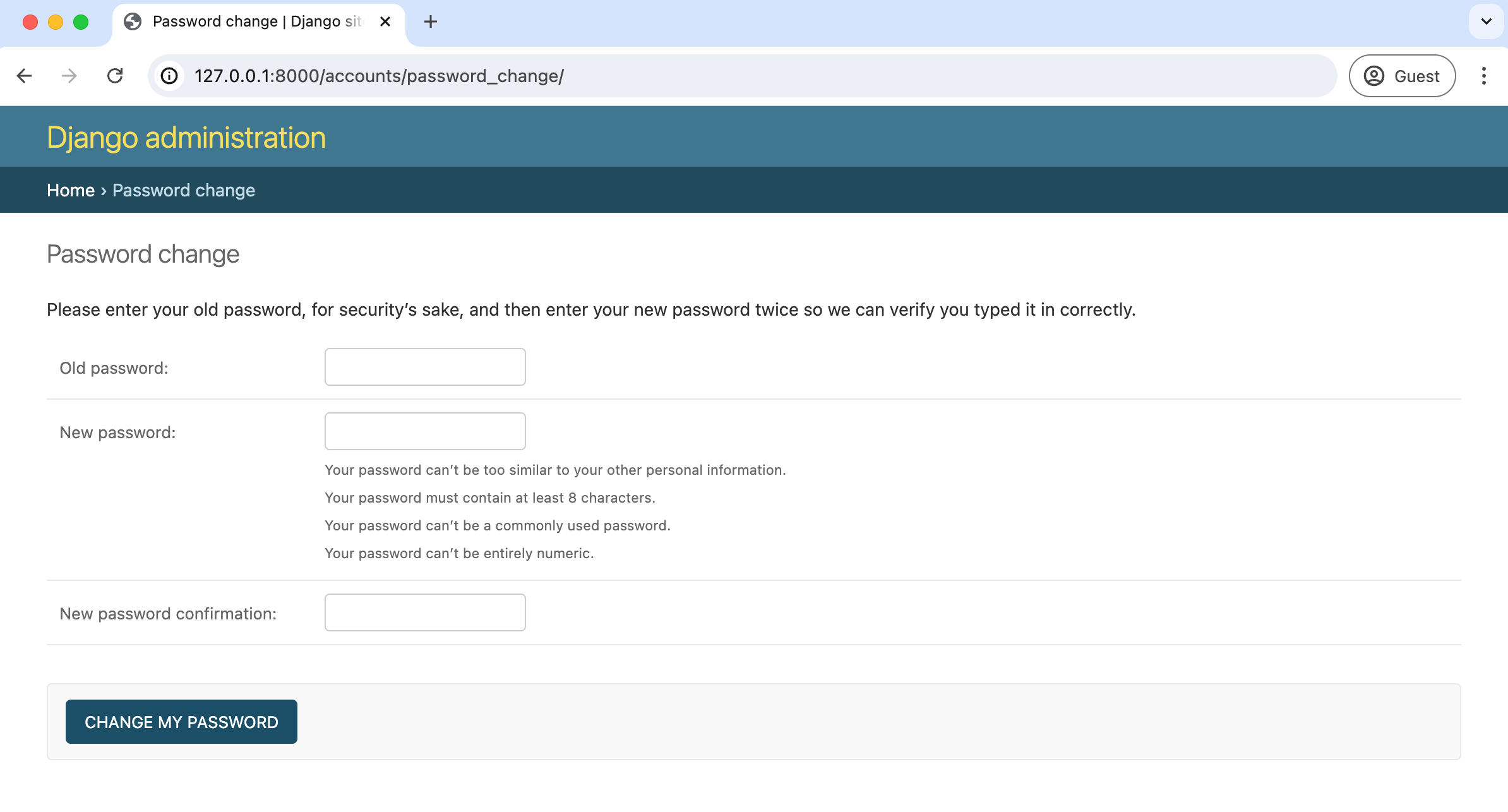
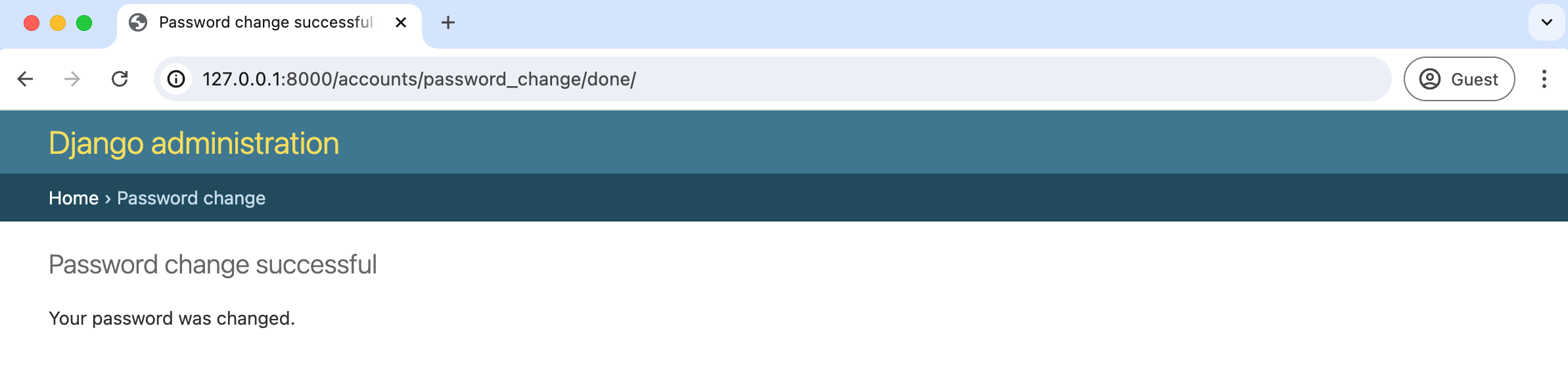
输入你的旧密码和一个新密码。然后点击”修改我的密码”按钮,你将被重定向到”密码修改成功”页面。
自定义密码修改页面
让我们自定义这两个密码修改页面,使其与 Newspaper 网站的整体风格保持一致。由于 Django 已经为我们创建了视图和 URL,我们只需要修改模板即可——但必须使用 password_change_form.html 和 password_change_done.html 这两个名称。在你的文本编辑器中,在 registration 目录下创建两个新的模板文件:
templates/registration/password_change_form.htmltemplates/registration/password_change_done.html
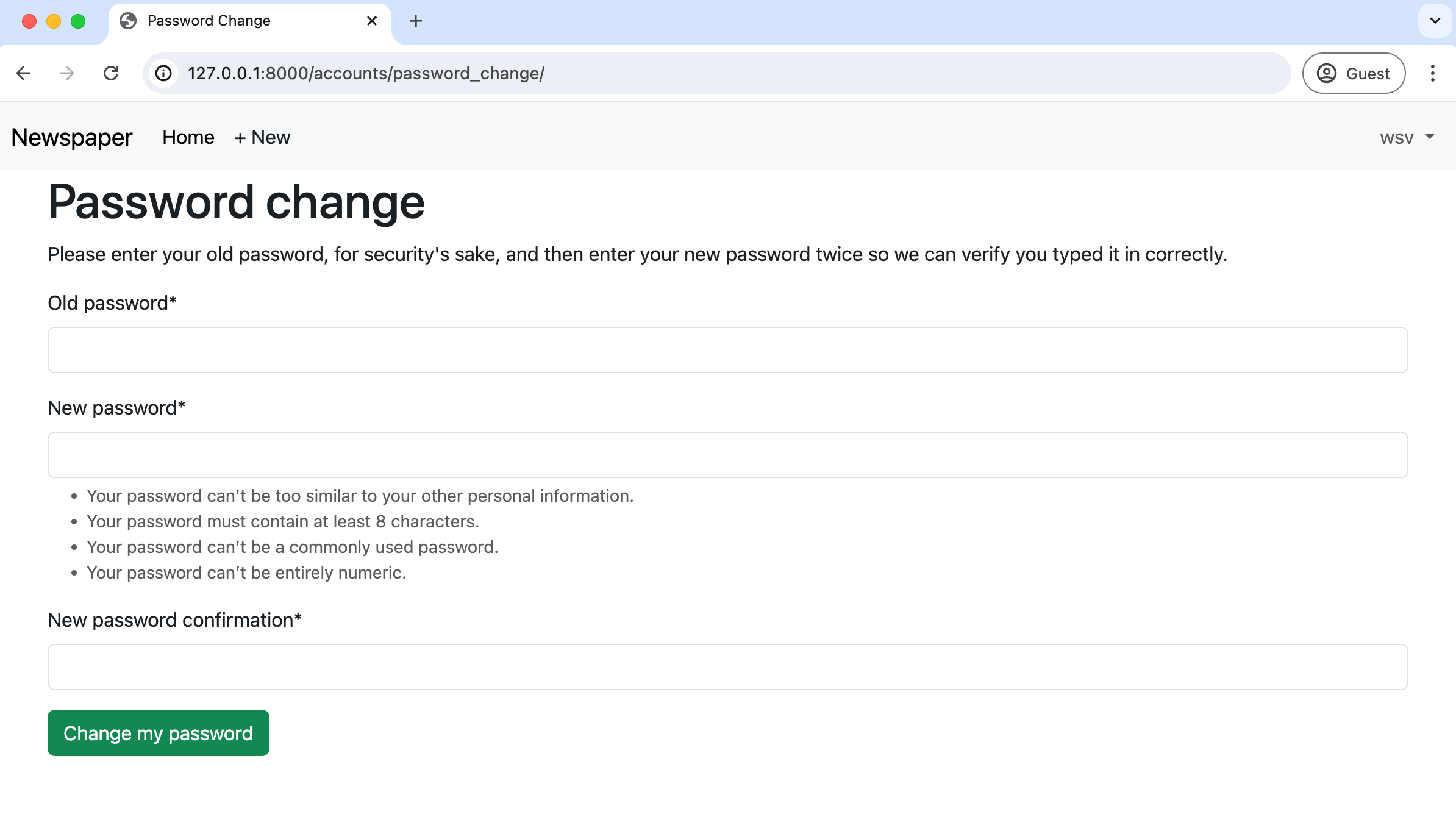
用以下代码更新 password_change_form.html。在顶部,我们继承了 base.html,加载了 crispy forms,并设置了页面元标题(该标题显示在浏览器标签页中,但不显示在网页本身)。表单使用 POST 方法发送数据,添加 csrf_token 以确保安全,并使用 { form|crispy } 应用 crispy forms 样式。最后,我们添加了一个使用 Bootstrap btn btn-success 样式的绿色提交按钮。
<!-- templates/registration/password_change_form.html -->
{% extends "base.html" %}
{% load crispy_forms_tags %}
{% block title %}Password Change{% endblock title %}
{% block content %}
<h1>Password change</h1>
<p>Please enter your old password, for security's sake, and then enter
your new password twice so we can verify you typed it in correctly.</p>
<form method="POST">{% csrf_token %}
{{ form|crispy }}
<input class="btn btn-success" type="submit"
value="Change my password">
</form>
{% endblock content %}
在浏览器中加载 http://127.0.0.1:8000/accounts/password_change/ 查看效果。
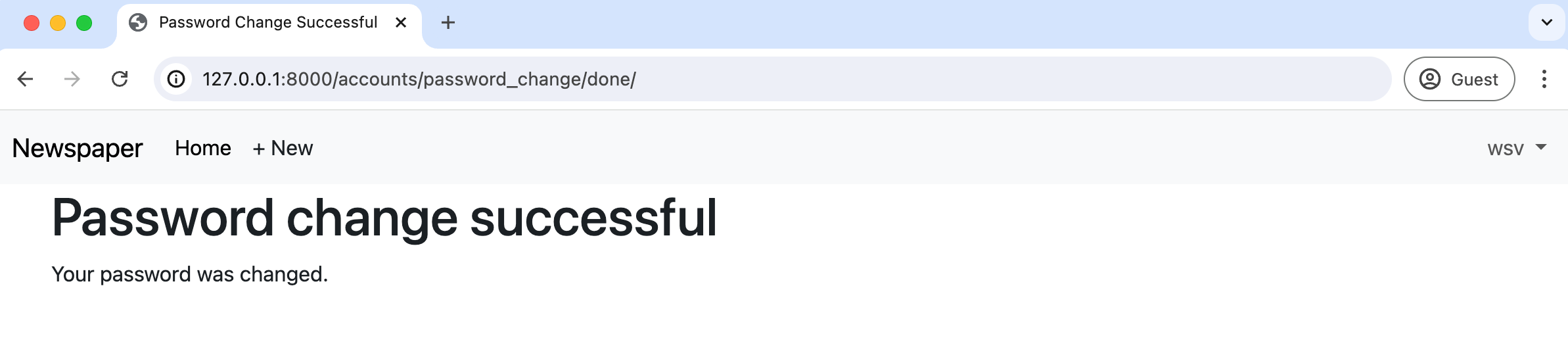
接下来是 password_change_done 模板。它也继承了 base.html,并包含一个新的元标题;不过这个页面上没有表单,只有新文本。
<!-- templates/registration/password_change_done.html -->
{% extends "base.html" %}
{% block title %}Password Change Successful{% endblock title %}
{% block content %}
<h1>Password change successful</h1>
<p>Your password was changed.</p>
{% endblock content %}更新后的页面位于:http://127.0.0.1:8000/accounts/password_change/done/
这并不太难,对吧?当然,这比从头开始创建所有内容,尤其是安全更新用户密码的相关代码,要省力得多。接下来是密码重置功能。
密码重置
密码重置处理了用户忘记密码的常见情况。步骤与我们刚刚完成的密码修改非常相似。Django 已经提供了默认实现,我们只需要自定义模板以匹配网站其他部分的风格。
唯一需要做的配置是告诉 Django 如何发送电子邮件。毕竟,用户只有能访问与账户关联的邮箱才能重置密码。为了测试,我们可以使用 Django 的 console 后端 设置(详见 https://docs.djangoproject.com/en/5.0/topics/email/#console-backend),它会将邮件文本输出到我们的命令行控制台。
在 django_project/settings.py 文件底部添加以下一行代码。
# django_project/settings.py
EMAIL_BACKEND = "django.core.mail.backends.console.EmailBackend"  # new
这样就可以了!Django 会替我们处理其余所有事情。让我们试试看。访问 http://127.0.0.1:8000/accounts/password_reset/ 查看默认的密码重置页面。
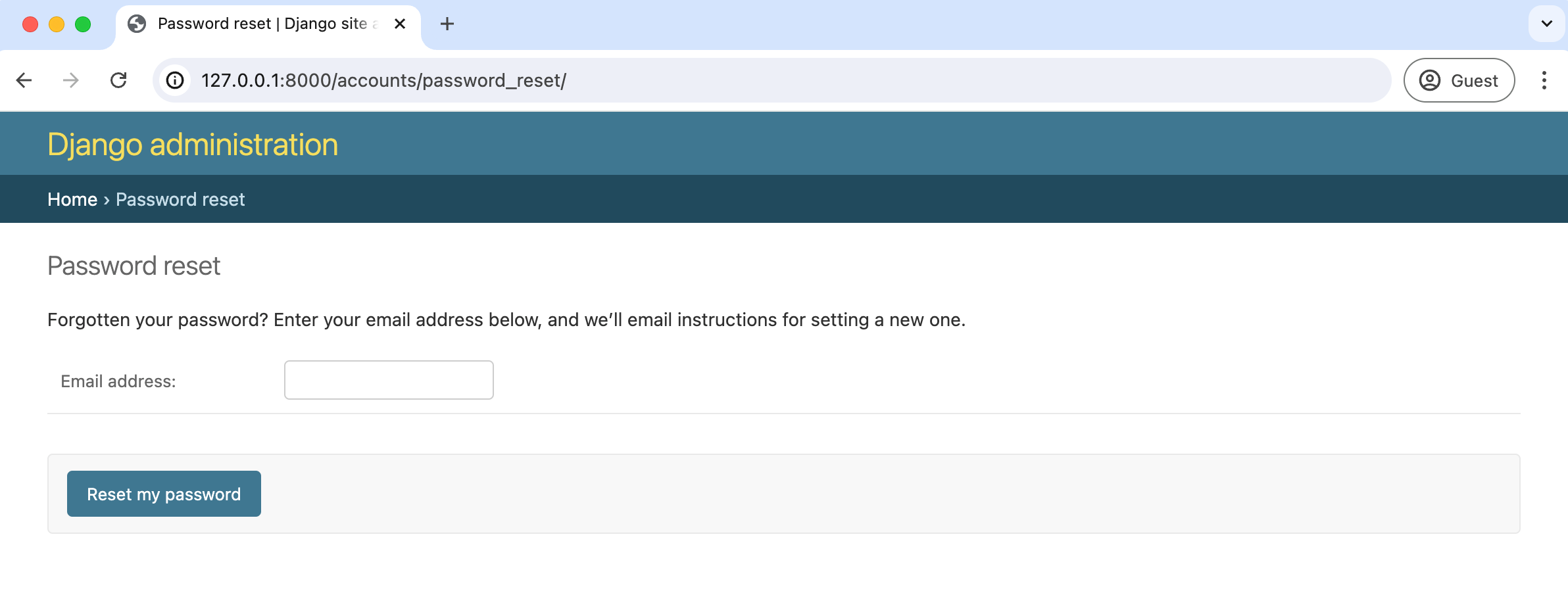
确保输入的电子邮件地址与你现有的某个用户账户匹配。回想一下,testuser 没有关联的邮箱账户,所以你应该使用 testuser2(按照我的例子,它的邮箱是 testuser2@email.com)。提交后,你将被重定向到密码重置完成页面:http://127.0.0.1:8000/accounts/password_reset/done/
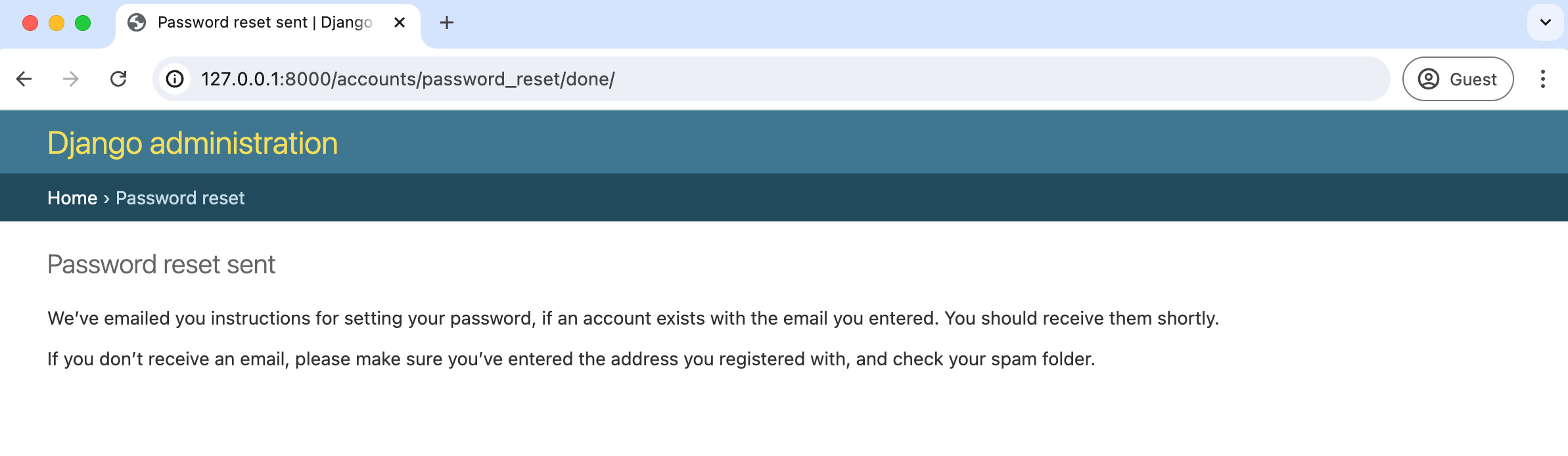
这个页面提示我们检查邮箱。由于我们已将 Django 配置为将邮件发送到命令行控制台,邮件文本会出现在那里。在我的控制台中,我看到以下内容:
Content-Type: text/plain; charset="utf-8"
MIME-Version: 1.0
Content-Transfer-Encoding: 8bit
Subject: Password reset on 127.0.0.1:8000
From: webmaster@localhost
To: testuser2@email.com
Date: Fri, 28 Jun 2024 15:36:30 -0000
Message-ID:
<168235059067.94136.7639058137157368290@1.0.0.0.0....0.0.0.ip6.arpa>

You're receiving this email because you requested a password reset for your user
account at 127.0.0.1:8000.

Please go to the following page and choose a new password:

http://127.0.0.1:8000/accounts/reset/Mw/bn63cu-b77b6590a2e38a75c4b2af244c40297e/

Your username, in case you've forgotten: testuser2

Thanks for using our site!

The 127.0.0.1:8000 team
-------------------------------------------------------------------------------
[11/Jun/2024 15:36:30] "POST /accounts/password_reset/ HTTP/1.1" 302 0
[11/Jun/2024 15:36:30] "GET /accounts/password_reset/done/ HTTP/1.1" 200 3014
你的邮件文本应该几乎相同,只有以下三行不同:
- 第六行的”收件人”包含用户的电子邮件地址
- URL 链接包含 Django 为我们随机生成的安全令牌,该令牌只能使用一次
- 用户名(Django 贴心地将它写在了邮件中)
我们稍后会自定义所有默认的邮件文本,但现在,先找到邮件中的链接并将其输入到浏览器中。在这个例子中,我的链接是:
http://127.0.0.1:8000/accounts/reset/Mw/bn63cu-b77b6590a2e38a75c4b2af244c40297e/
你将被重定向到”密码重置确认”页面。
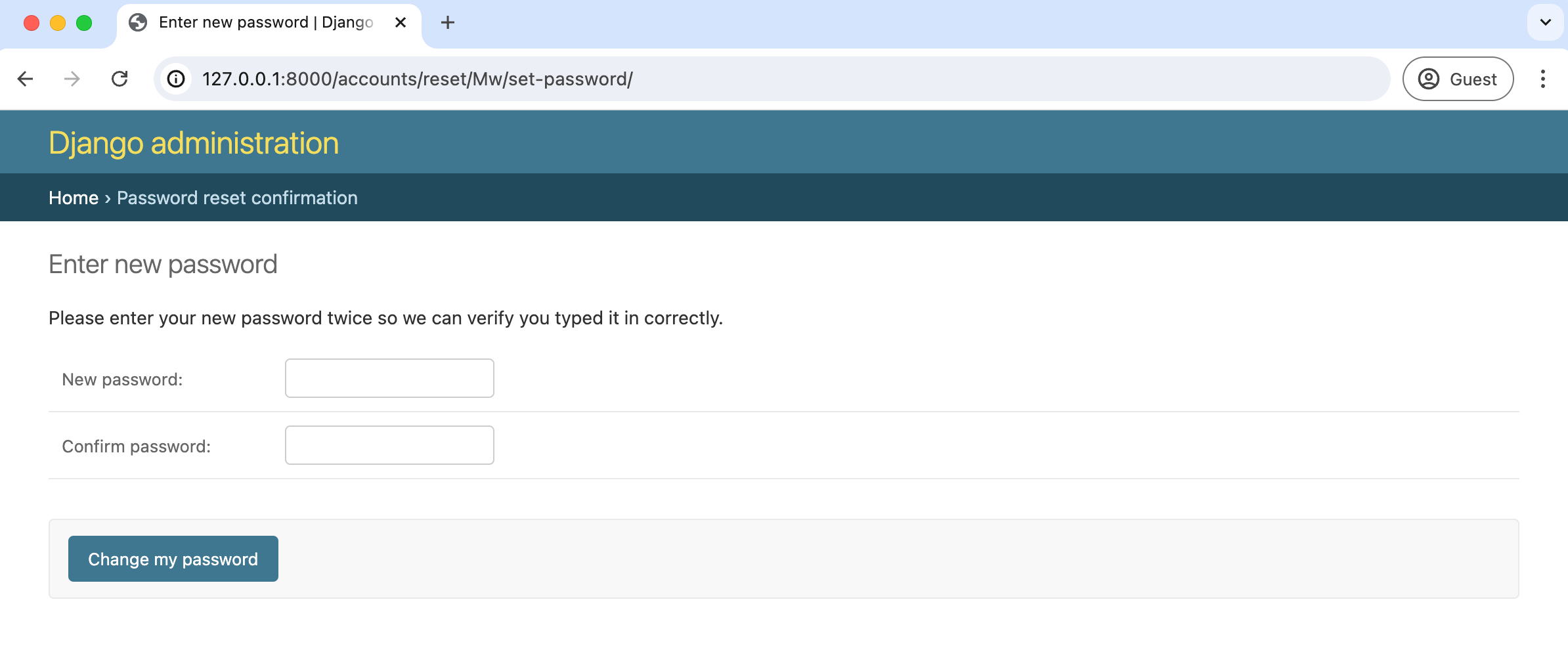
输入新密码并点击”修改我的密码”按钮。最后这一步会将你重定向到”密码重置完成”页面。
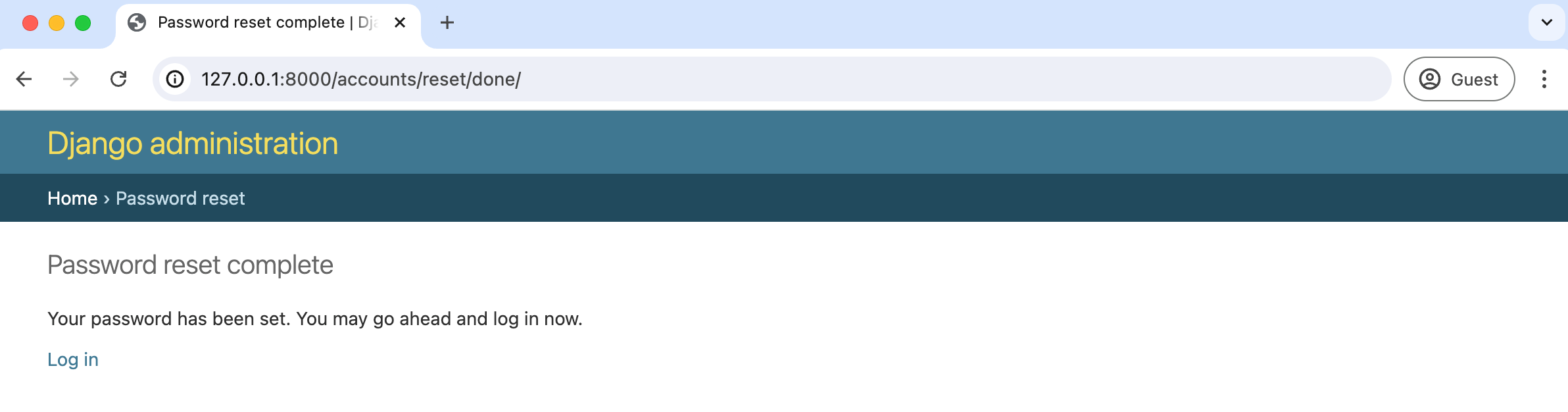
要确认一切正常,点击”登录”链接并使用你的新密码。应该可以正常工作。
自定义模板
与密码修改页面一样,我们可以创建新的模板来定制整个密码重置流程的外观。你可能已经注意到,这里使用了四个不同的模板。现在在 templates/registration/ 目录下创建这些新文件。
templates/registration/password_reset_form.htmltemplates/registration/password_reset_done.htmltemplates/registration/password_reset_confirm.htmltemplates/registration/password_reset_complete.html
从密码重置表单开始,即 password_reset_form.html。在顶部,我们继承了 base.html,加载了 crispy_forms_tags,并设置了页面元标题。由于我们在 base.html 中使用了”块”标题,我们可以在这里覆盖它们。表单使用 POST 方法发送数据,包含 csrf_token 确保安全,以及 { form|crispy } 格式化表单。我们再次将提交按钮改为绿色。到了这一步,更新这些模板页面应该开始变得熟悉了。
<!-- templates/registration/password_reset_form.html -->
{% extends "base.html" %}
{% load crispy_forms_tags %}
{% block title %}Forgot Your Password?{% endblock title %}
{% block content %}
<h1>Forgot your password?</h1>
<p>Enter your email address below, and we'll email instructions
for setting a new one.</p>
<form method="POST">{% csrf_token %}
{{ form|crispy }}
<input class="btn btn-success" type="submit"
value="Send me instructions!">
</form>
{% endblock content %}
使用 python manage.py runserver 重新启动服务器,然后访问:http://127.0.0.1:8000/accounts/password_reset/ 刷新页面,你将看到新的页面。
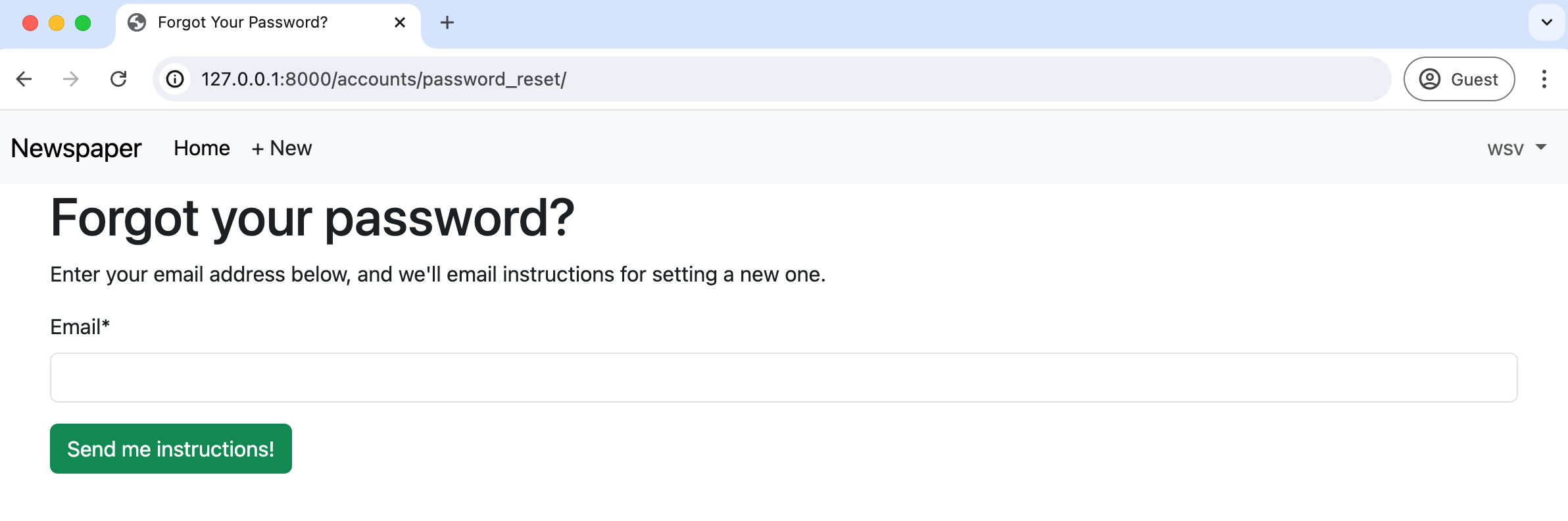
现在我们来更新其他三个页面。每个页面都继承 base.html,设置新的元标题,并添加新的内容文本。当涉及表单时,我们切换为加载并使用 crispy forms。
先从 password_reset_done.html 模板开始。
<!-- templates/registration/password_reset_done.html -->
{% extends "base.html" %}
{% block title %}Email Sent{% endblock title %}
{% block content %}
<h1>Check your inbox.</h1>
<p>We've emailed you instructions for setting your password.
You should receive the email shortly!</p>
{% endblock content %}
访问 http://127.0.0.1:8000/accounts/password_reset/done/ 确认更改。
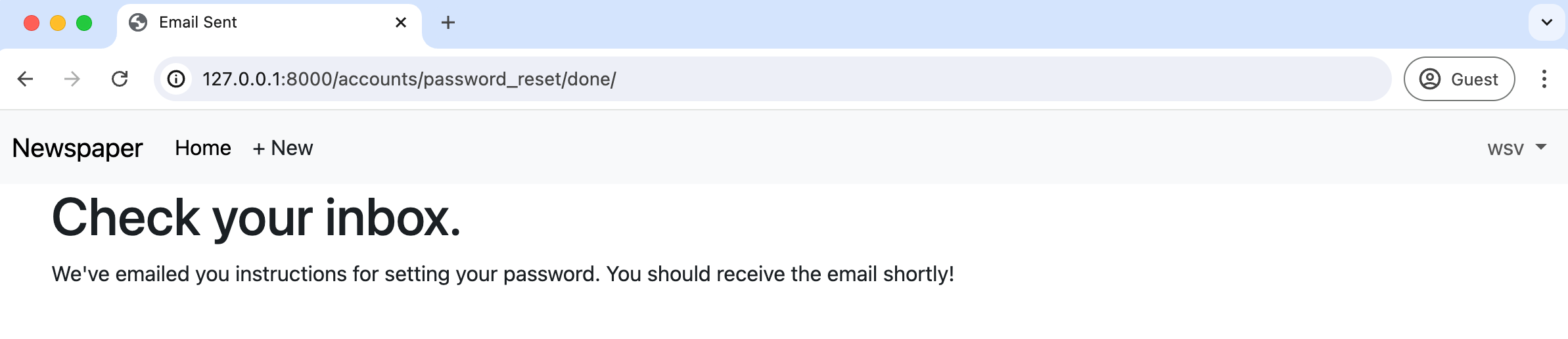
接下来是 password_reset_confirm.html。注意它有一个表单,所以这里我们会使用 crispy forms。
<!-- templates/registration/password_reset_confirm.html -->
{% extends "base.html" %}
{% load crispy_forms_tags %}
{% block title %}Enter new password{% endblock title %}
{% block content %}
<h1>Set a new password!</h1>
<form method="POST">{% csrf_token %}
{{ form|crispy }}
<input class="btn btn-success" type="submit" value="Change my password">
</form>
{% endblock content %}
在命令行中,获取之前输出到控制台的自定义邮件中的 URL 链接,你将看到以下内容:
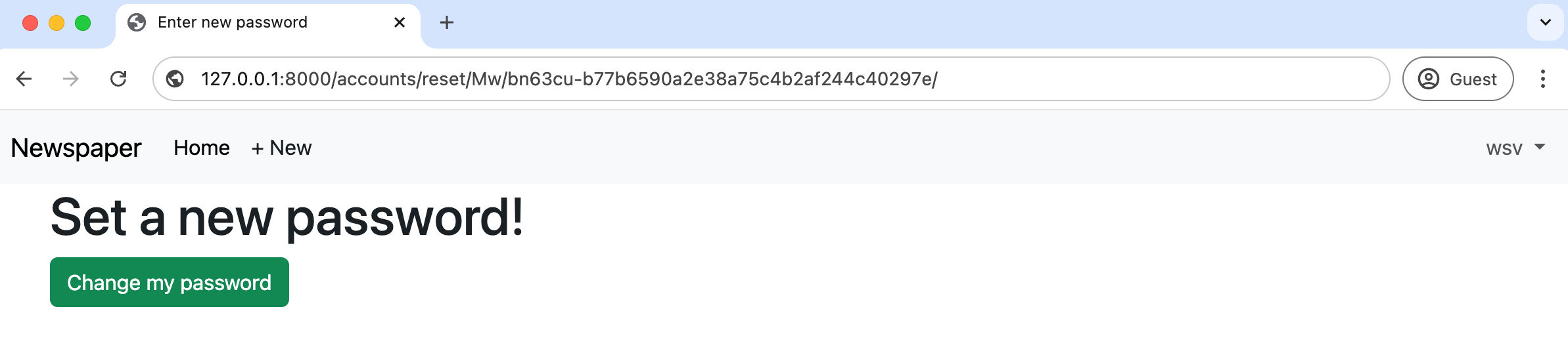
最后,这是密码重置完成的代码:
<!-- templates/registration/password_reset_complete.html -->
{% extends "base.html" %}
{% block title %}Password reset complete{% endblock title %}
{% block content %}
<h1>Password reset complete</h1>
<p>Your new password has been set.</p>
<p>You can log in now on the
<a href="{% url 'login' %}">Log In page</a>.</p>
{% endblock content %}
你可以在 http://127.0.0.1:8000/accounts/reset/done/ 查看。
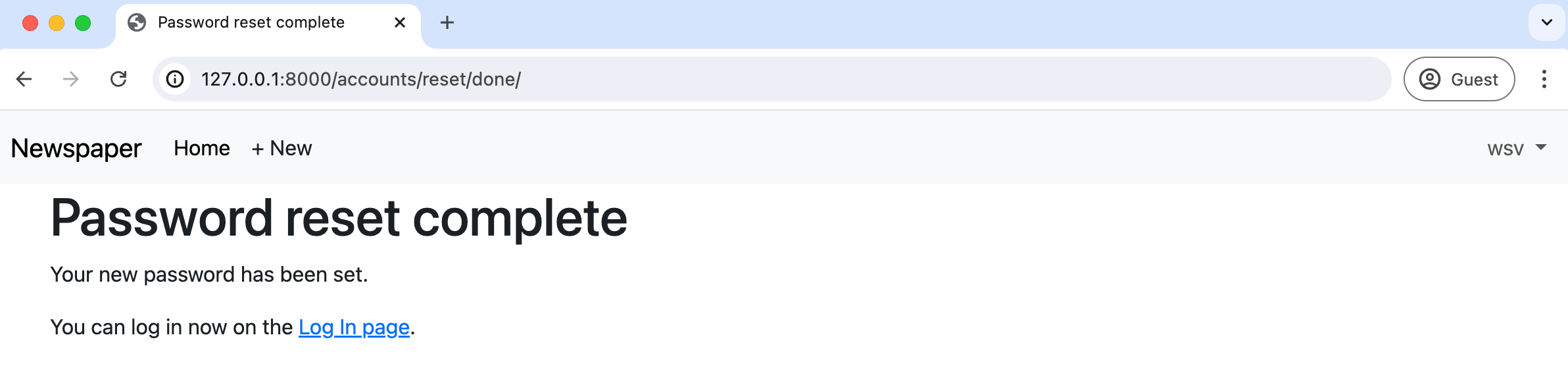
动手实践
让我们通过重置 testuser2 账户的密码来确认一切正常。退出当前账户并进入登录页面——这是放置”忘记密码?“链接的合理位置,该链接可以将用户引导到密码重置部分。现在添加这个链接。
首先,我们需要在现有登录页面上添加密码重置链接,因为我们不能假设用户知道正确的 URL!该链接放在表单底部。
<!-- templates/registration/login.html -->
{% extends "base.html" %}
{% load crispy_forms_tags %}
{% block title %}Log In{% endblock title %}
{% block content %}
<h2>Log In</h2>
<form method="post">{% csrf_token %}
{{ form|crispy }}
<button class="btn btn-success ms-2" type="submit">Log In</button>
</form>
<!-- new code here -->
<p><a href="{% url 'password_reset' %}">Forgot your password?</a></p>
<!-- end new code -->
{% endblock content %}
刷新登录网页,确认新的”忘记密码?“链接已经出现。
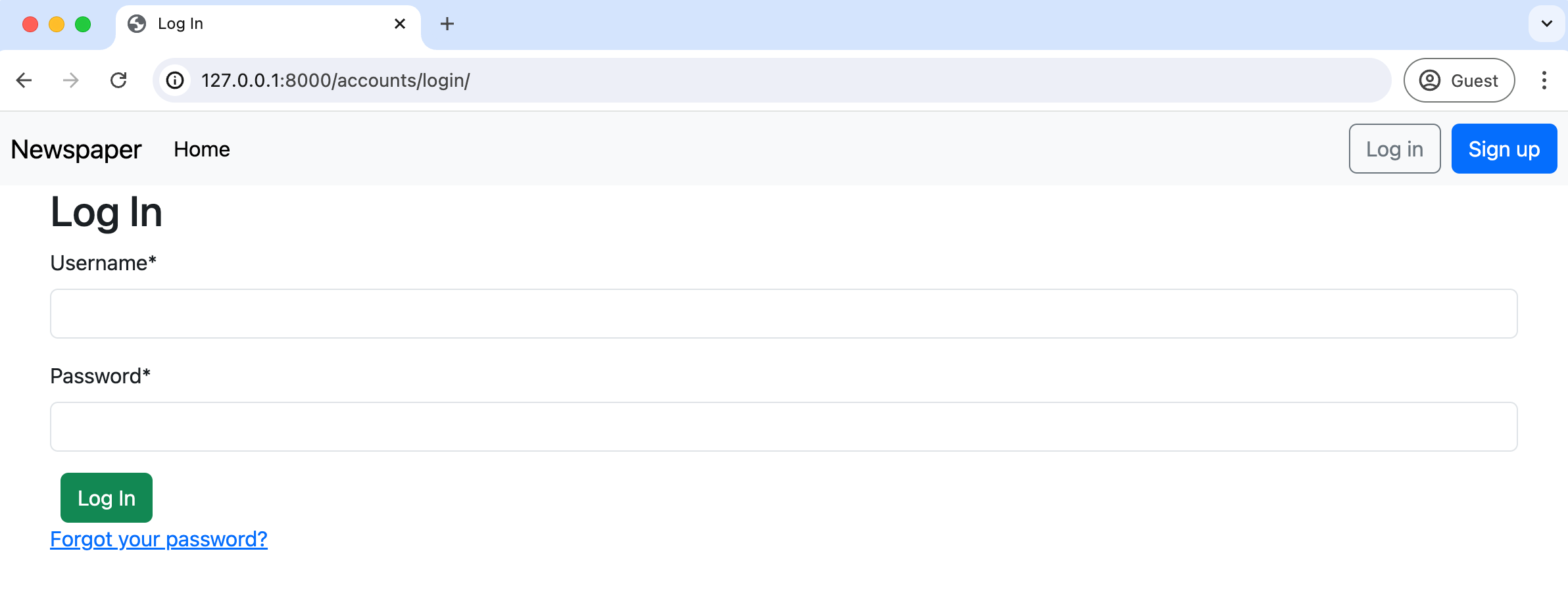
点击该链接进入密码重置模板,使用 testuser2@email.com 完成整个流程。请记住,唯一的链接会输出到你的控制台中。设置一个新密码,然后用它登录 testuser2 账户。一切应该按预期工作。
Git
又完成了一大块工作。在继续之前,用 Git 保存我们的进度。
(.venv) $ git status
(.venv) $ git add -A
(.venv) $ git commit -m "password change and reset"
(.venv) $ git push origin main
小结
在下一章中,我们将构建实际的 Newspaper 应用,用于展示文章。